> For the complete documentation index, see [llms.txt](https://helpdocs.ycloud.com/help-center/llms.txt). Markdown versions of documentation pages are available by appending `.md` to page URLs; this page is available as [Markdown](https://helpdocs.ycloud.com/help-center/inbox/inbox-calling.md).
# WhatsApp Calling in Inbox
To help businesses communicate more effectively with customers, WhatsApp voice calling has been integrated into the Inbox. For an overview of WhatsApp Calling, please refer to:
{% content-ref url="/pages/s92Skaalrc46bQ9kbRAH" %}
[Overview](/help-center/calling/overview.md)
{% endcontent-ref %}
This article focuses on how to make and receive voice calls with customers directly from the Inbox.
## Invite Customers to Call in
When text messages are not sufficient during a conversation, you can invite the customer to start a voice call, allowing you to resolve issues faster and more efficiently.
{% hint style="info" %}
Inbound calls are free of charge.
{% endhint %}
### 1. Send a Call Invitation
Entry point:
Click WhatsApp Calling > Ask customer to call
Enter the reason for the call. After confirming the information, click Send.
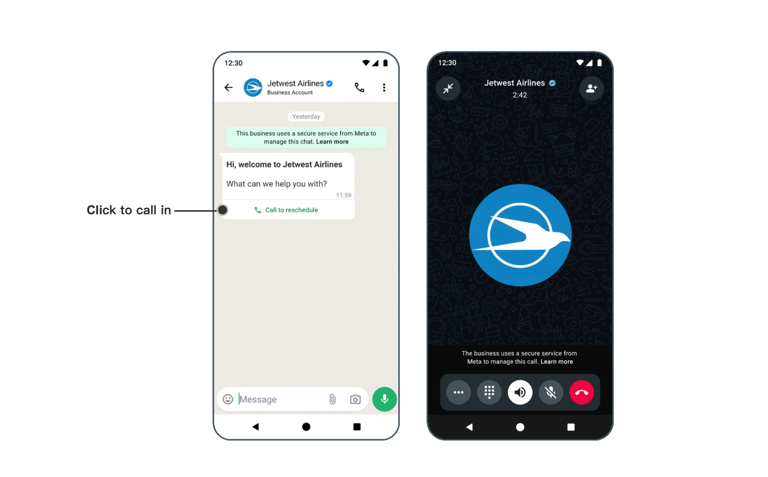
Once sent, the customer will receive a call invitation message on their phone, as shown below. The customer can initiate the call by tapping the Call button.
#### 2. Answer an Incoming Call
When the customer starts a voice call using the invitation link you sent, you will see a notification in the Inbox.
Click Answer to accept the call and start the conversation.
##
## Make an Outbound Call
Before making an outbound call, you must have permission to place calls using the business phone number. Please refer to the [relevant documentation](https://helpdocs.ycloud.com/help-center/calling/overview#outbound-calling-permissions) for more details.
⚠️ Outbound voice calls are chargeable.
For pricing details, please visit:
### 1. Request for Calling permission
Entry point:
Click WhatsApp Calling > Call out
YCloud will guide you to first send a call request message to the customer.
### 2. Receive Authorization
Once the customer grants permission, you will receive a system notification in the Inbox.
### 3. Start the Ountbound Call
After authorization is granted, click the Call out button again to initiate the outbound voice call.
### View Call Records
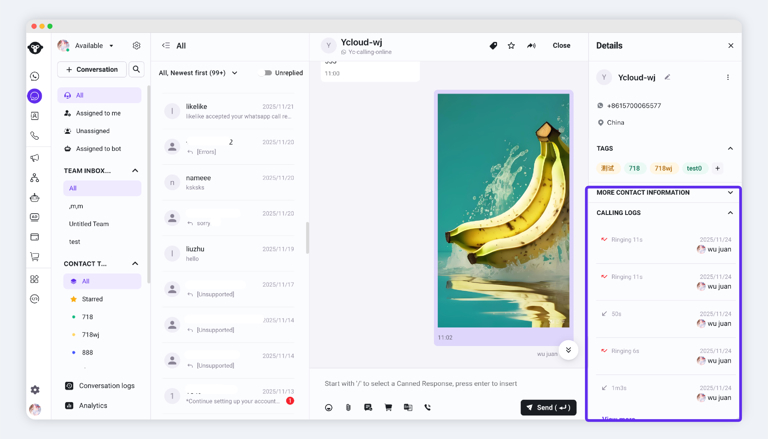
Open the Call Records panel on the right-hand side of the Inbox to view detailed call logs, including call status and duration.
---
# Agent Instructions
This documentation is published with GitBook. GitBook is the documentation platform designed so that both humans and AI agents can read, navigate, and reason over technical content effectively. Learn more at gitbook.com.
## Querying This Documentation
If you need additional information that is not directly available in this page, you can query the documentation dynamically by asking a question.
Perform an HTTP GET request on the current page URL with the `ask` query parameter, and the optional `goal` query parameter:
```
GET https://helpdocs.ycloud.com/help-center/inbox/inbox-calling.md?ask=&goal=
```
`ask` is the immediate question: it should be specific, self-contained, and written in natural language.
`goal` is optional and describes the broader end goal you are ultimately trying to accomplish on behalf of the user. GitBook uses it to tailor the answer towards what is most useful for that goal.
The response will contain a direct answer to the question and relevant excerpts and sources from the documentation.
Use this mechanism when the answer is not explicitly present in the current page, you need clarification or additional context, or you want to retrieve related documentation sections.